
How do I add a new contact to Usherpa?
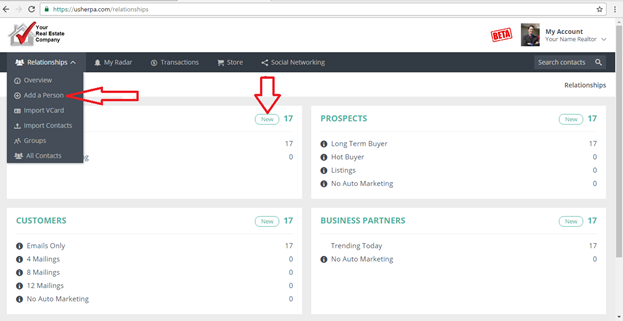
In the “My Account” section you can add a new person by simply clicking on the Relationships drop-down box and choosing “+Add a Person”. You can also do this from the “ADD” button.
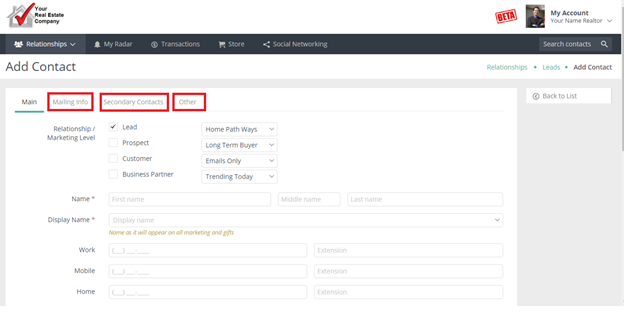
Once in the Add Contact screen, choose a Relationship type and Marketing Level. Next, enter in the contact information, being sure to fill in all of the fields with a red asterisk (*) next to them. Also, make sure that the Display Name is correct--this is where you will change 'Robert' to 'Rob' if your contact has a nickname they prefer. 'Display Name' is the name which will appear on all marketing pieces. Click “Add” or “Add & Return” at the bottom.
Be sure to complete the “Mailing Info”, “Secondary Contacts” and “Others” boxes.
And of course, click Add when you're done to finish adding this Relationship to your Usherpa and automatically keep yourself relevant!
Comments
0 comments
Please sign in to leave a comment.