
Login to your Usherpa account at lo.usherpa.com
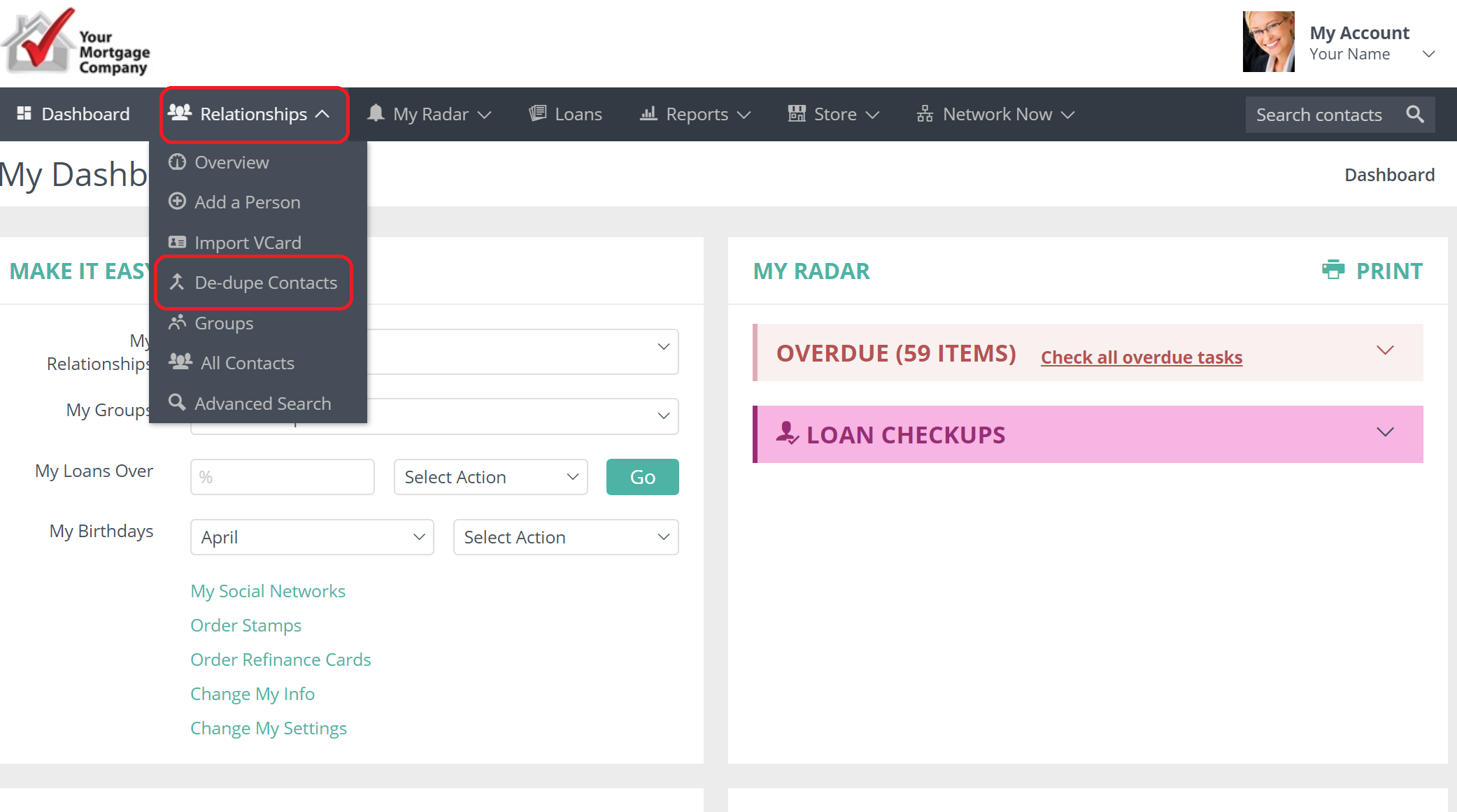
Locate the RELATIONSHIPS tab. From the drop down box choose De-dupe Contacts.
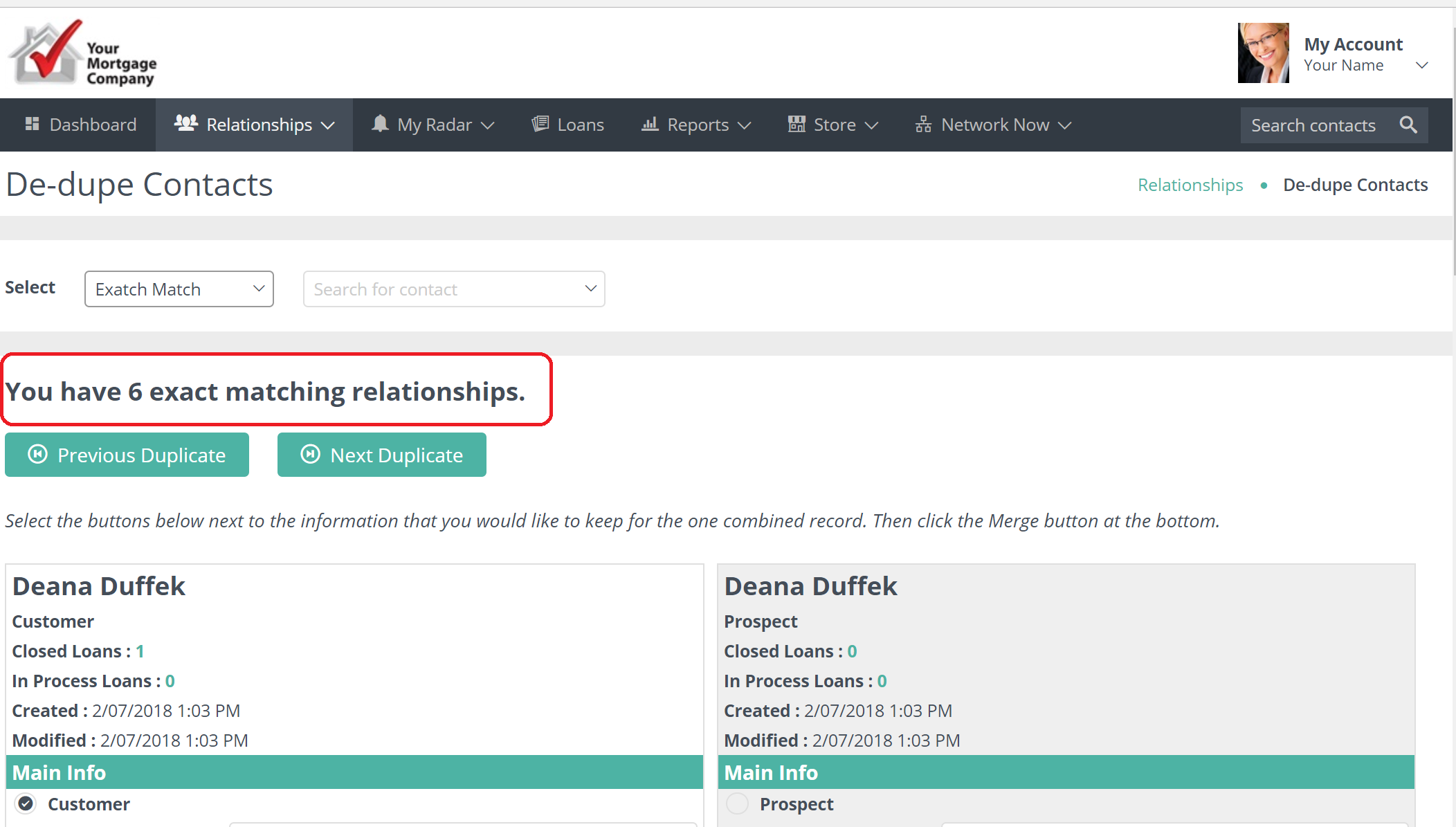
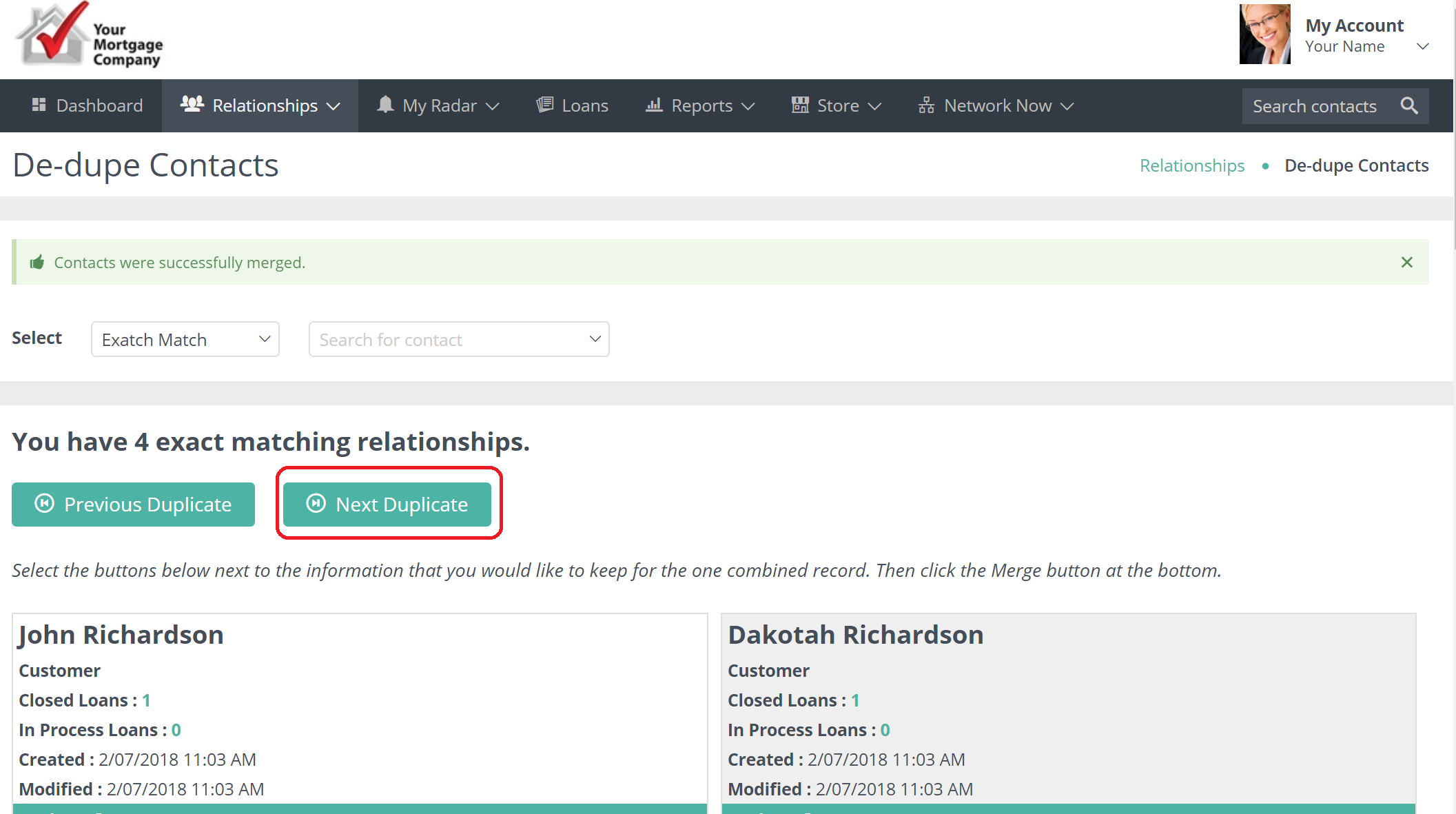
View the names of the duplicates that pop up. It will also show you how many "exact matching" contacts you have.
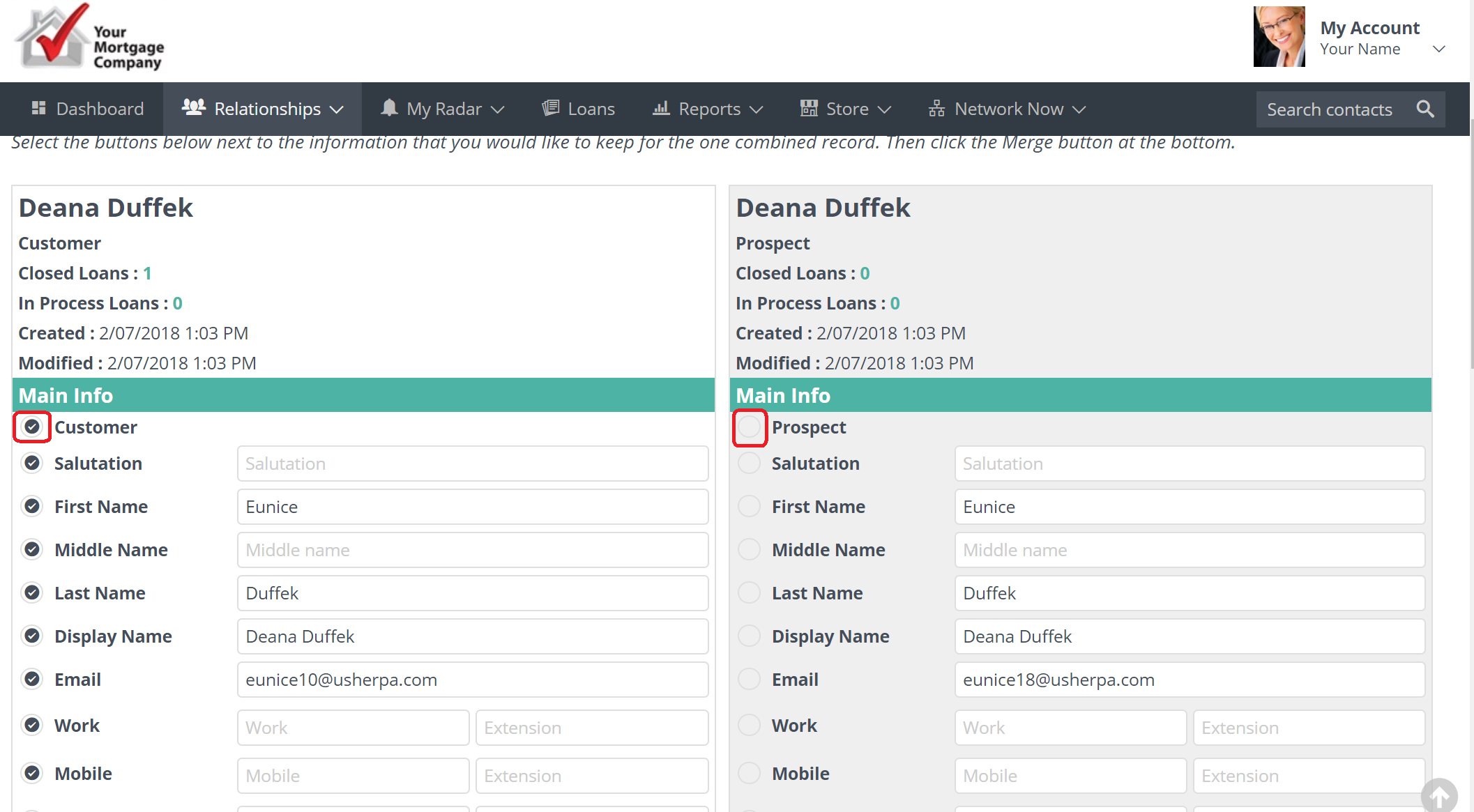
 Click the circle next to the information that you would like to remain in the Contact information. The circle will be black next to the information to be saved.
Save information such as work phone number, birthday, or email address from one contact record if it is not in the other.
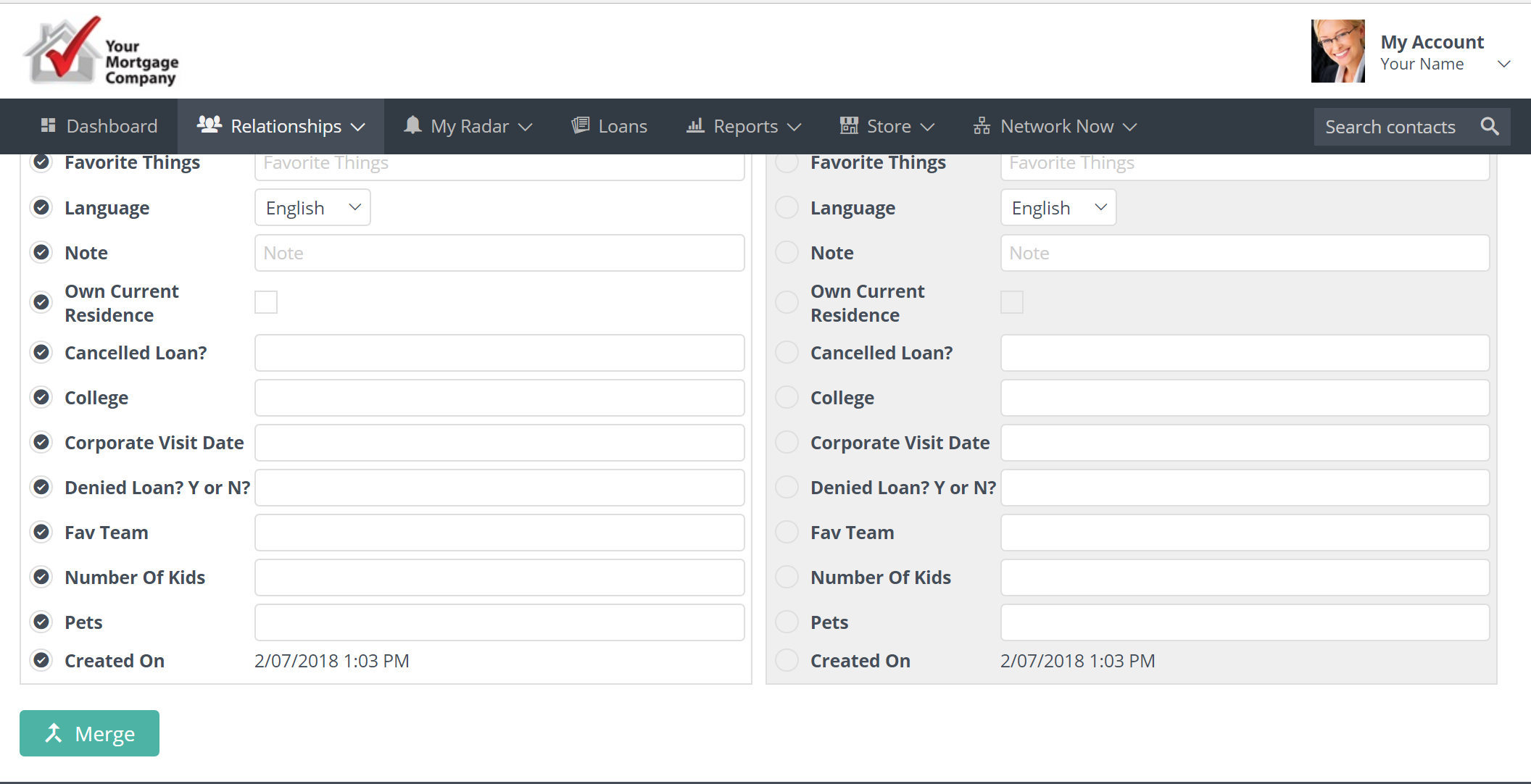
After you have selected the data you would like to remain in the record , click MERGE at the bottom of the page.
The system will ask if you are sure you want to MERGE, click OK.
After you click OK, it will tell you "Contacts were successfully merged".
You can then go through each duplicate in the system the same way. Just click NEXT duplicate to bring up another duplicate in the system.
Once all the duplicates have been merged in your database, this screen will appear showing zero matching contacts.
Comments
0 comments
Please sign in to leave a comment.