
Did you know that when you create a Task in the Usherpa website, you will receive a reminder email with the Task details the day it is due? That’s right! Create Tasks in the Usherpa website and get reminder emails on their due date.
You can create a stand alone task, or you can relate a task to a person in your database. To create a stand alone task, click the Dashboard then click on the "UsherpAlert" box.
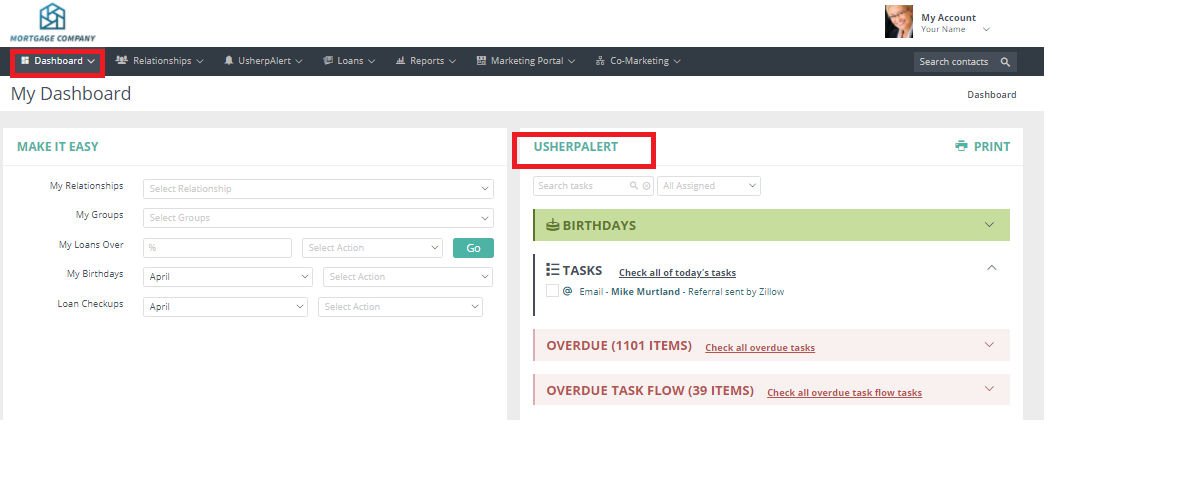
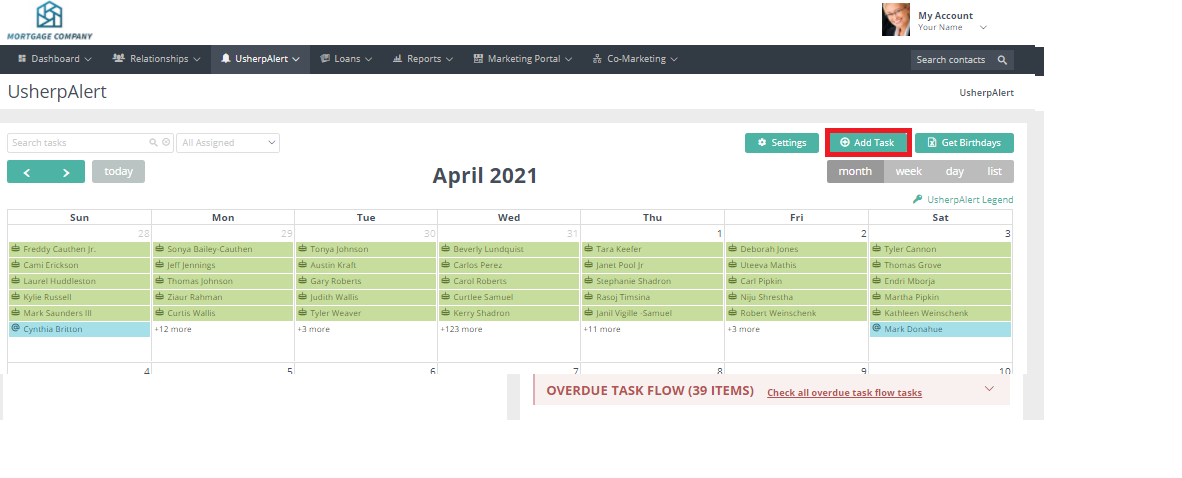
This will bring up all of your tasks in a calendar view. On the right side of the page, click on "Add Task" and fill in the fields, hit ‘Save’ and you are done. You have created a task and you will receive an email the day it is due. You can add a task to your personal Outlook calendar, too just check the box that says "Add to My Outlook".
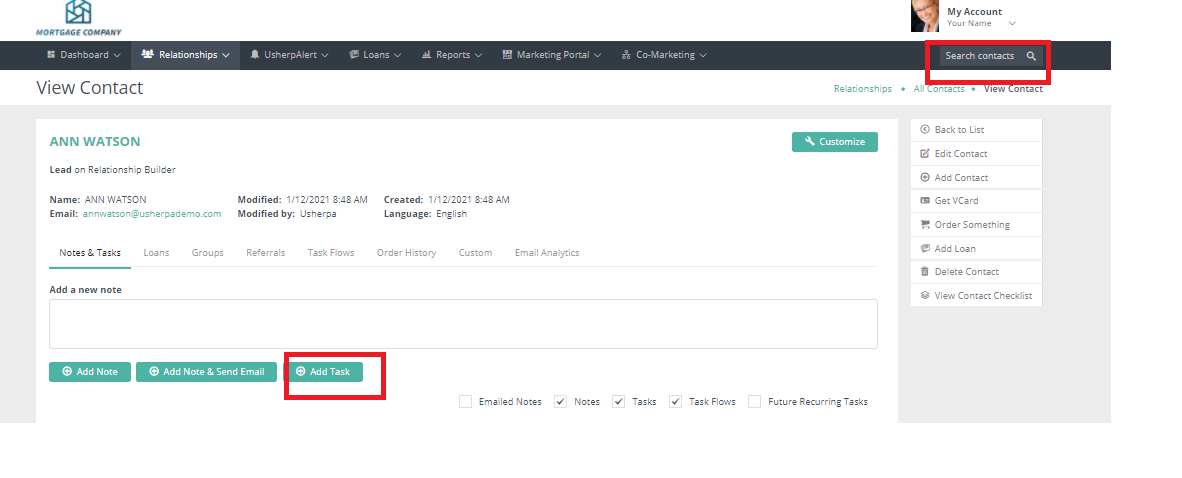
To create a task specific to an individual in your database, pull up that person via the "Search Contacts" button on the top right. Simply enter their name into the search box, then click on the name once it's brought up. At the bottom left side of the screen, click the ‘Add Task’ button and fill in the fields. Click ‘Save’ and that’s it! On the day the task is due, you'll get an email with the task details and contact information relative to your contact.
From the UsherpAlert page, you are able to view your tasks and birthdays, add the task or birthday to your Outlook calendar, or create a follow up task.
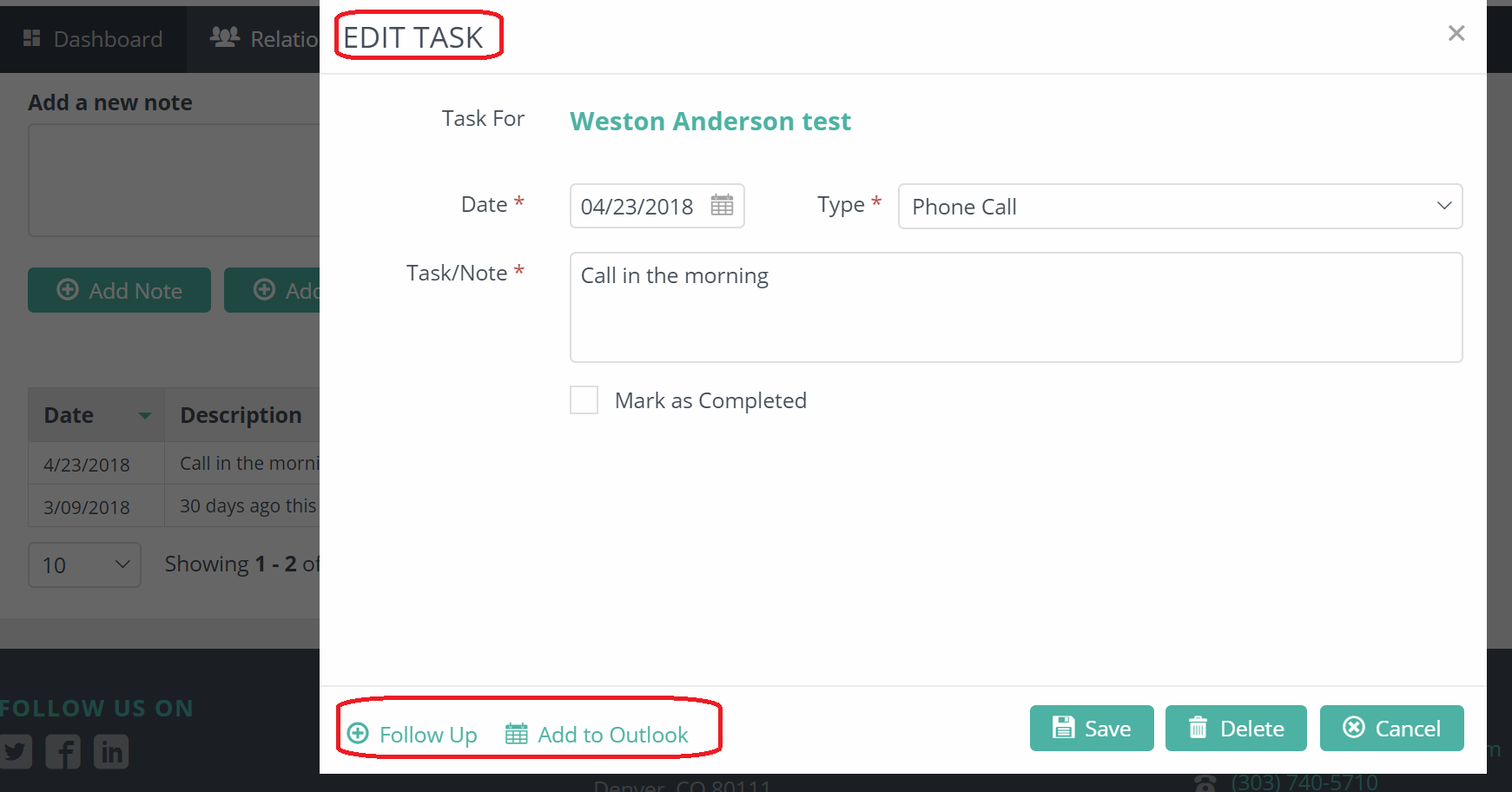
A File Download screen will pop up, click "Open". This will let you view the event. To save it to your calendar, click the "Events" tab, then click "Save & Close". 
Comments
0 comments
Article is closed for comments.